

Zinye Cloud overview
This section shows you how to run your Zinye software on Zinye Cloud — from signing up to managing your site, billing, backups, and domains.
What is Zinye Cloud?
Section titled “What is Zinye Cloud?”Zinye Cloud is managed hosting for your Zinye apps. Instead of buying a server and installing software yourself, you sign up, create a site, and start using your app in the browser. Zinye runs the servers, applies updates, and takes daily backups for you.
You can host any of the Zinye apps on Zinye Cloud:
- Zinye ERP — accounting, inventory, sales, and operations
- Zinye CRM — leads, deals, and customer records
- Zinye Helpdesk — support tickets
- Zinye Chat — team messaging
Words you’ll see
Section titled “Words you’ll see”A few terms appear all over the dashboard. Here’s what they mean in plain language:
| Term | What it means |
|---|---|
| Site | Your hosted app, reachable at a web address like yourcompany.zinye.com. One site = one app. |
| App | The software running on a site (ERP, CRM, Chat, Helpdesk). |
| Version | The release line your site runs on (for example V16 or V15). |
| Region | The data centre where your site is hosted (for example Falkenstein, Germany). |
| Plan | What you pay per month for a site. Each site has its own plan. |
| Trial | A free period when you first create a site, before a plan is charged. |
| Team | Your Zinye Cloud account. A team owns your sites and billing, and can have more than one member. |
The dashboard
Section titled “The dashboard”Everything is managed from the dashboard at cloud.zinye.com/dashboard. The menu on the left is how you move around:
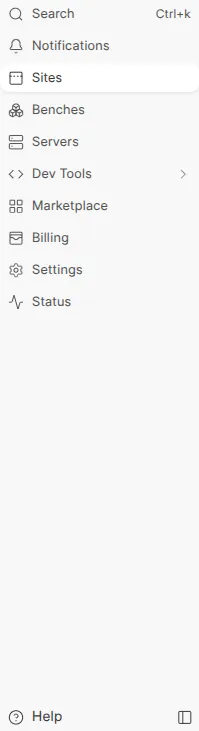
- Sites — create and manage your hosted apps. This is where you’ll spend most of your time.
- Marketplace — browse and install extra apps onto a site.
- Billing — payment method, plans, and invoices.
- Settings — your profile, team members, and security.
- Status — whether Zinye Cloud is running normally.
- Help (bottom) — reach the support team.
Start here
Section titled “Start here”If you’re brand new, do these three things in order:
- Create your account — sign up and log in.
- Add a payment method — required before you can create a site.
- Create a site — choose your app and launch it.