

Backups & restore
This page shows you how your site is backed up, how to take a backup yourself, and how to restore one if you ever need to.
Automatic backups
Section titled “Automatic backups”Zinye Cloud backs up your site for you — your database and your files are saved regularly and stored offsite (on separate storage), so your data is safe even if something goes wrong with the server. You don’t have to set anything up.
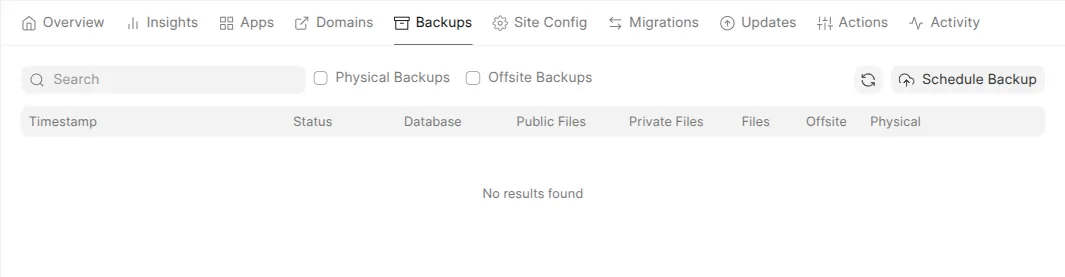
You can see every backup on your site’s Backups tab.
Take a backup yourself
Section titled “Take a backup yourself”Before a big change (like a version update or importing a lot of data), it’s smart to take a fresh backup first:
- Open your site and go to the Backups tab.
- Click Schedule Backup.
- The new backup appears in the list once it finishes, with a Completed status.
Download a backup
Section titled “Download a backup”Each backup in the list has download links for its parts — Database, Public Files, and Private Files. Click a link to download that file to your computer, so you always have your own copy.
Restore a backup
Section titled “Restore a backup”Restoring rolls your site back to the data in a chosen backup.
To restore, open the backup you want to go back to and choose the restore option. If you’re unsure, contact support — the team can restore a backup for you and confirm before anything is overwritten.